Set audiobook bookmarks: How to remember any spot
Yes, many audiobook apps support bookmarks via a dedicated icon in the player. If this function is missing, as has long been the case with Spotify, three quick methods help: a shared chapter link, a screenshot with a timestamp, or a short note. If you want to capture an exact second, the screenshot is the most reliable method. If you only want to find a chapter again, the share link is sufficient.
In short:
- Spotify now uses automatic progress saving, but for exact spots a shared chapter link or a screenshot with a timestamp is recommended.
- A true bookmark in most apps is indicated by symbols that vary by platform, while Libby saves account-based bookmarks permanently.
- If an app doesn't offer a bookmark, methods such as sharing a chapter link with a timestamp, screenshots or notes are useful to quickly find important spots.
- For an organized collection, use fixed naming conventions, folder structures and regular backups, especially with large amounts of notes and screenshots.
- OutaStory provides reliable position control through account-based, synchronized playback, making external aids obsolete, especially for short stories.
Table of contents
- What an audiobook bookmark really saves
- Quick guides for the main audiobook apps
- Workarounds when the app doesn't support bookmarks
- How to keep your bookmark collection organized
- How OutaStory avoids bookmark problems from the start
- Try OutaStory if reliable resuming matters more to you than tinkering
- Further help pages on bookmarks and listening progress
- Sources
- FAQ
What an audiobook bookmark really saves
A bookmark is not always the same. Some apps remember only the chapter, others the exact second in the track. That makes a difference when you want to quote or find a specific passage later.
- Chapter bookmarks jump back to the chapter start when opened, not to the exact spot where you stopped.
- Exact time positions save the second itself and are the more precise choice for quotes or important scenes.
- Account binding ensures that markers are preserved even if you return an audiobook to a library app and borrow it again later. With Libby, for example, bookmarks, comments and highlights are tied to your account, not to the individual file.
Since 2025 many platforms have also automatically saved listening progress. That often replaces manually setting a bookmark with a tap when you just want to continue listening. For a notable spot, a quote or a scene you want to read later, you still need a real bookmark.
Quick guides for the main audiobook apps
Each app has its own logic. Some show a bookmark icon directly in the player, others hide the function in the menu. A brief overview of the most common apps helps without a long search.
- Audible: Tap the bookmark icon in the player, usually a small flag or a plus sign. You can then find your set markers under “My Library” on the respective title. For offline audiobooks, make sure to open the app briefly when internet is available again so that synchronization between devices works.
- Libby: In the player there is a dedicated icon for bookmarks and highlights, and you can even add a short comment. The big advantage: because Libby stores bookmarks account-bound, they remain preserved, even if you return the audiobook and borrow it again later.
- Spotify: Spotify has historically lacked a native, precise bookmarking feature for audiobooks. As a workaround the share link to the current chapter works well, supplemented by a handwritten timestamp in a note. It is now more practical that Spotify automatically saves listening progress, so when you open it next you will anyway continue at the last spot.
- Storytel, BookBeat and Thalia: The three platforms generally offer similar basic features in their players such as bookmarks, sleep timers and speed controls. Comparison articles on common audiobook apps show, however, that details like icon position or comment function can differ depending on the update. Just take a quick look in the player menu for a bookmark or star icon, usually at the bottom right next to the playback bar.
Small consolation if you're switching apps: the basic logic is almost the same everywhere. Tap a symbol, position is marked, done.
Workarounds when the app doesn't support bookmarks
Not every app offers this convenience. And sometimes you also want to proceed faster than clicking through three menus. For such cases there are methods that work with any audiobook app, regardless of the built-in feature set.
- Share chapter link: The share function usually only saves the chapter start, not the exact second. Therefore add a brief timestamp to the message to yourself, for example via a messenger chat with yourself as the only recipient.
- Screenshot bookmarks: Photograph the player when the chapter name and time display are visible. This method is considered a practical alternative when an app doesn't offer its own function. For that, create a dedicated photo album, otherwise the screenshots will disappear in the general gallery.
- Note or voice memo: A short text note with chapter and time takes ten seconds and is often faster than a screenshot, especially while driving.
- External connector apps: Some third-party tools retrofit bookmarking functions, but they often require access to your account or a premium unlock. Check before installation which permissions the app actually requests.
Pro tip: Save screenshot bookmarks and notes in the same folder as your audiobook app access data, but separate from sensitive passwords. That way you can quickly find both without making access data unnecessarily visible.
How to keep your bookmark collection organized
You can remember five bookmarks. Not fifty. If you regularly listen to audiobooks, you'll eventually need a system, otherwise important spots get lost in a flood of screenshots and notes.
- Use fixed naming conventions: Chapter, topic and timestamp in that order, e.g. “Chap. 7, turning point, 42:15”. That speeds up finding things enormously.
- Create tags or folders in the note app: A folder per book or audiobook series keeps things organized, especially with screenshot collections that otherwise quickly become confusing.
- Don't forget backups: Cloud notes sync automatically; exported screenshots should be backed up manually from time to time.
- Prefer account-based storage whenever the app offers it. It survives device changes, app reinstalls and account lending.
- Combine sleep timer with bookmarks: If you use audiobooks to fall asleep, you benefit more from a reliable sleep timer than from a huge catalog. If the timer stops, set a bookmark shortly before falling asleep so you start exactly there in the morning.
How OutaStory avoids bookmark problems from the start
Some problems are best solved by preventing them from arising in the first place. That's exactly what we worked on at OutaStory when we rethought playback for short stories, with ePub Landmarks playing an important role for navigation (EPUB Landmarks: The Complete Guide to Navigation Semantics).
- Synchronized readalong: Text and audio run in parallel so when you jump back you immediately see where you were instead of remembering a rough spot in the audio. We explain in detail more about how readalong and the improved search work.
- Gapless playback: Chapter transitions without gaps make jumping between sections less error-prone because no gap obscures the exact position.
- Account-based playback: Your listening position is tied to your OutaStory account, not to a single device. That removes precisely the uncertainty that often leads to improvised screenshot solutions in apps without this binding.
For listeners who follow short stories chapter by chapter and want precise position control, this is a practical difference in everyday life.
Try OutaStory if reliable resuming matters more to you than tinkering
Screenshots, notes and share links work, but they take time and require discipline. OutaStory doesn't take this detour at all: because text and audio run synchronized and your position is stored account-based, you don't need external tools to find a spot again.
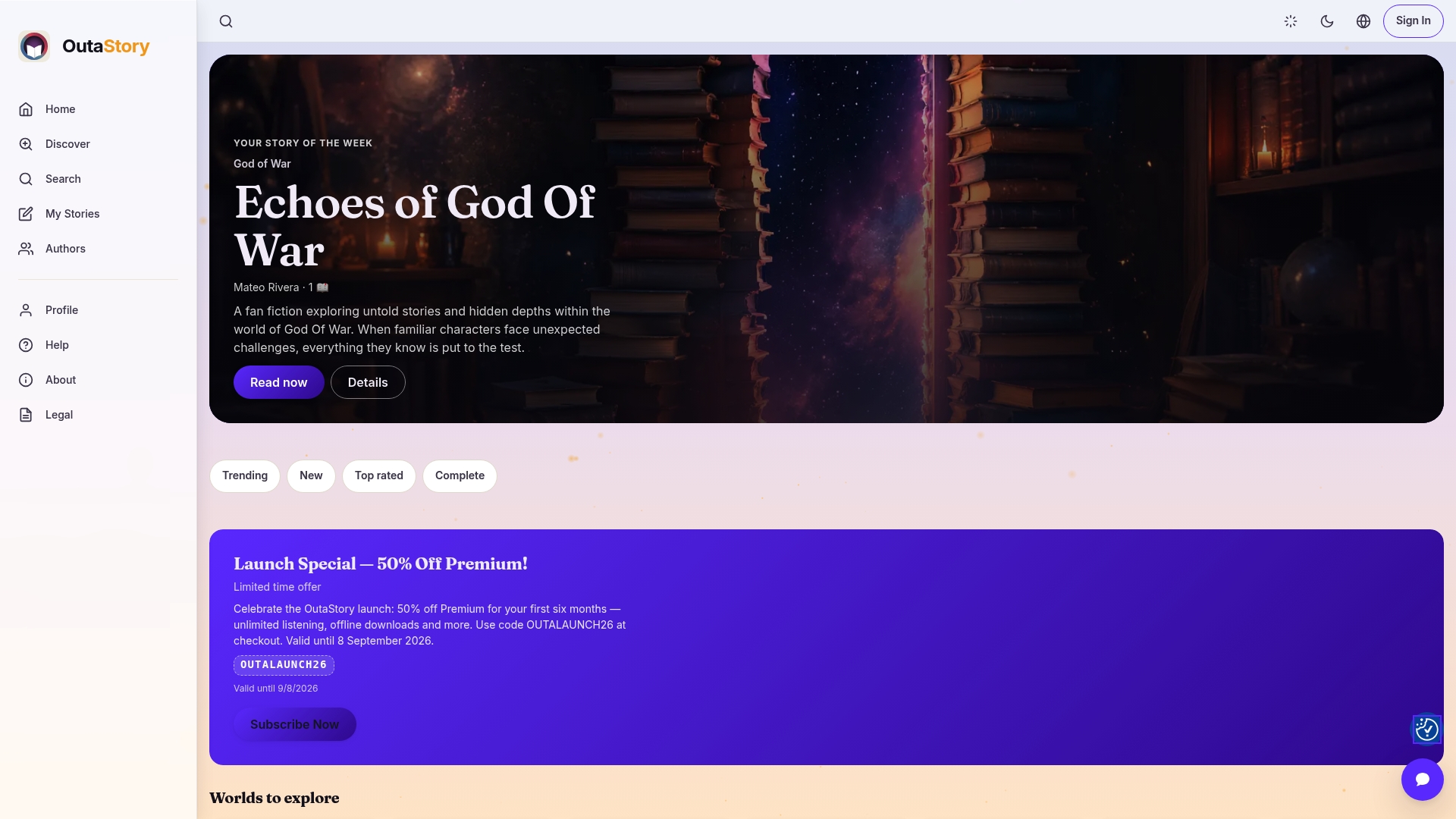
For listeners who are often on the move, also take a look at Offline listening without interruption, because a saved position does little if the connection breaks in the middle. Those who listen regularly and value ad-free access and extended chapter management can find details about the premium membership on the respective page. OutaStory is especially suitable for anyone who follows short stories chapter by chapter and wants to know exactly where they left off, instead of listening to long novels over many hours. Just open a story and try for yourself how synchronized listening differs from the usual screenshot solution.
Further help pages on bookmarks and listening progress
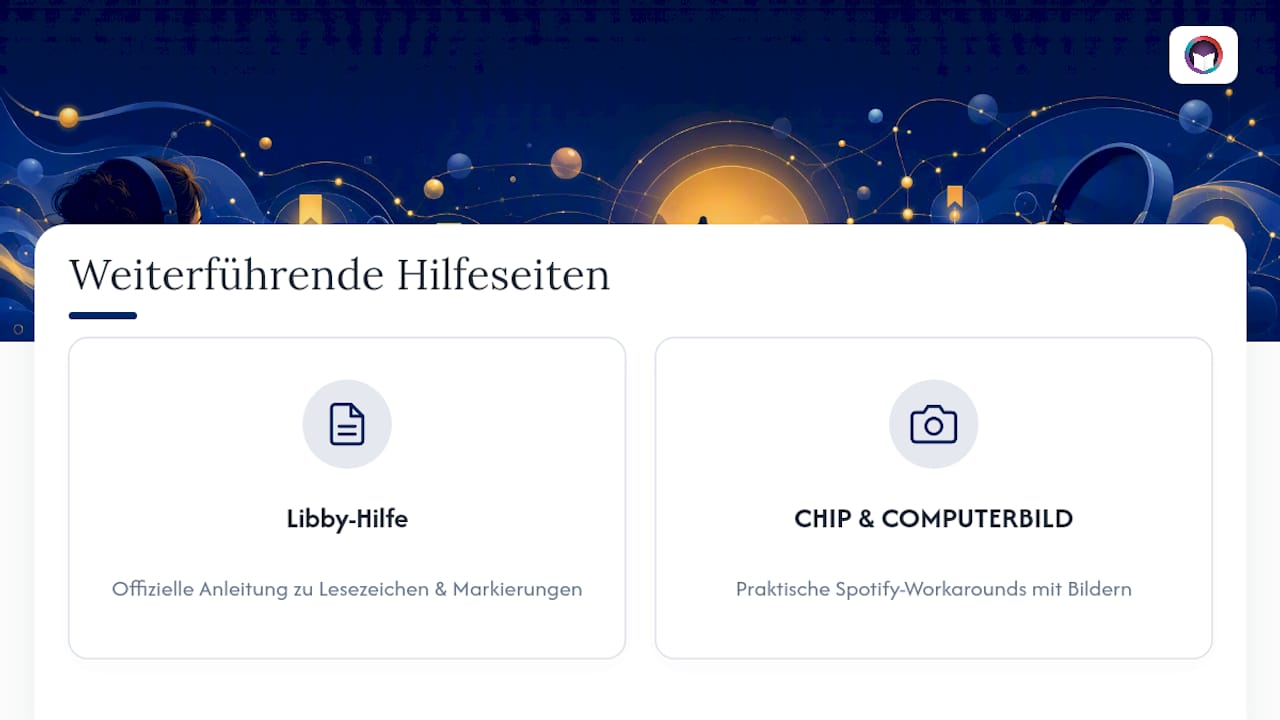
Those who want to go deeper will find concrete step-by-step instructions directly from the providers themselves. The official Libby help on bookmarks and highlights explains the library app functions most precisely. For Spotify users, CHIP and COMPUTERBILD provide the most practical workarounds with images.
Sources
- Adding bookmarks, comments and highlights in an audiobook - Libby Help
- Spotify audiobook: How to set a bookmark - CHIP
- Spotify audiobook: Set bookmarks - COMPUTERBILD
FAQ
Can you set bookmarks on audiobooks in Spotify?
Spotify has historically lacked a native, precise bookmarking feature for audiobooks, but the app has automatically saved listening progress since 2025. For exact spots, a shared chapter link or a screenshot with a timestamp can help.
How do I add a bookmark in Audible?
Tap the bookmark icon in the Audible player, usually a small flag, and the position will be saved immediately. You can then find all set markers under “My Library” for the respective title.
Which is better for the brain, reading or listening to audiobooks?
Both formats activate language comprehension in similar ways but differ in detail: reading more strongly promotes visual memory, while listening is well suited to background consumption. For many people, a mix of both, for example synchronized readalong, is the most pleasant.
How much does one earn as a narrator for audiobooks?
Publicly available, reliable figures vary widely depending on the client, project length and experience; a single uniform figure cannot be stated credibly. At OutaStory, narrators and authors instead receive a revenue share of 8 % platform fee of the income from their published stories.
Recommendations
- Readalong with audiobooks: How the method improves reading
- Listening to audiobooks offline: The practical guide
Read and write on OutaStory
Thousands of short stories to read for free — or publish your own and find an audience.